
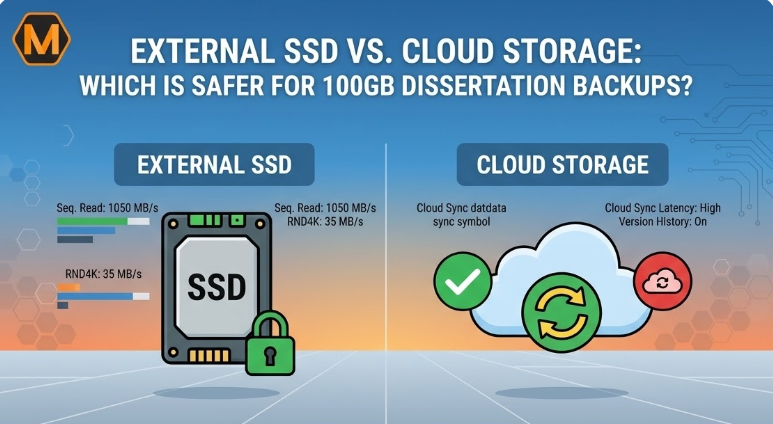
For any final-year student, the dissertation isn’t just a file; it is the culmination of years of caffeine-fueled research, late-night interviews, and thousands of pages of reading. When that folder hits the 100GB mark—filled with high-resolution scans, raw data sets, and version after version of drafts—the question of “where to keep it” becomes a matter of academic life or death. A single drive failure or a corrupted sync folder can erase months of progress in seconds. In 2026, the debate between physical hardware and digital “sky” storage has shifted, especially as file sizes grow and the complexity of modern research requires more than just a simple save button.
Choosing the right storage requires a balance of speed, security, and accessibility. While a student might look for assignment help online from a trusted brand like myassignmenthelp to ensure their citations and structure are flawless, they must also ensure the physical data is protected from hardware crashes. Relying solely on a laptop’s internal drive is a recipe for disaster. This guide dives into the technical benchmarks of External SSDs versus the reliability of Cloud Storage, specifically for large-scale academic projects.
1. The Anatomy of a 100GB Dissertation Folder
Before choosing a storage medium, we must understand what makes up a 100GB academic project. It is rarely just a Word document. A modern dissertation folder typically includes:
- Primary Research Data: Raw SQL databases, Excel spreadsheets, or SPSS files.
- Multimedia Assets: High-definition interview recordings (video/audio) and scanned archival documents.
- Literature Repository: Thousands of PDFs managed by Zotero or Mendeley.
- Version History: “Draft_Final,” “Draft_Final_v2,” and “Draft_ACTUALLY_FINAL.”
Handling this much data requires high Sequential Write Speeds to ensure that when you click “Save,” the computer doesn’t freeze for thirty seconds.
2. The Power of the External SSD: Benchmarking for Students
When you plug in a modern NVMe External SSD, you aren’t just getting a “thumb drive.” You are getting a high-speed data pipe. For a 100GB dissertation folder, speed matters. If you are using an old-fashioned HDD (Hard Disk Drive), moving that folder for a backup could take twenty minutes. With a high-end SSD, it takes less than three.
Why CrystalDiskMark Matters
To understand the safety of an SSD, we look at the numbers. Using a benchmarking tool like CrystalDiskMark 9.0, we can measure how the drive handles “Random 4K” files. Dissertations are full of small files (citations, images, notes). If your drive has low random read speeds, searching your 100GB folder for a specific keyword will be painfully slow.
| Metric | Budget USB Flash Drive | External NVMe SSD (Gen 2) | Cloud Storage (Upload) |
| Seq. Read Speed | 150 MB/s | 1,050 MB/s | ~10 MB/s (Internet Dependent) |
| Seq. Write Speed | 30 MB/s | 1,000 MB/s | ~5 MB/s (Internet Dependent) |
| Random 4K Read | 0.5 MB/s | 35 MB/s | N/A |
| Durability | Low (Plastic) | High (Aluminum/Shockproof) | Highest (Server Grade) |
3. Cloud Storage: The Invisible Safety Net
Cloud storage (Google Drive, Dropbox, OneDrive) offers something an SSD cannot: immunity from physical damage. If your house floods or your bag is stolen, your 100GB dissertation remains safely tucked away on a server in a cooling facility miles away.
The Problem of “Sync Latency”
However, the cloud has a hidden weakness. When you are working on a massive 100GB folder, your computer is constantly trying to “sync” every tiny change. If your internet connection flickers while you are saving a heavy data model, you might end up with a “Conflict Copy.” In 2026, many students find that cloud “version history” is a lifesaver, allowing them to roll back to a version from three hours ago if a file becomes unreadable.
4. Security vs. Privacy: Who Really Owns Your Data?
Encryption is the buzzword of the year. Most external SSDs now come with hardware-based AES-256 encryption. This means even if someone steals the drive, they cannot read your research without your master password. Cloud providers also encrypt data, but they hold the keys. For students working on sensitive or proprietary research—especially in the fields of medicine or law—keeping the data on a physical drive that never touches the internet can be a major security advantage.
Managing the technical load of a 100GB project is exhausting. Often, students reach a point where the technical setup is perfect, but the actual writing feels like a mountain. Seeking professional Dissertation Help can provide the mental clarity needed to organize those 100GB of raw notes into a coherent, high-scoring final submission.
5. The Reliability Matrix: SSD vs. Cloud Storage
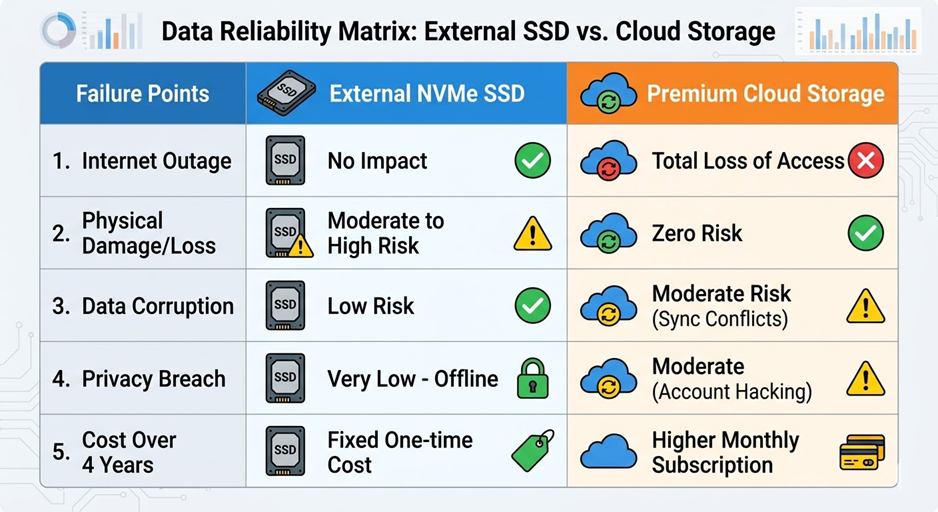
To help you decide, we have mapped out the “Failure Points” for each technology. Understanding these helps you build a redundant system.
| Potential Failure | External SSD | Cloud Storage |
| Physical Loss | High Risk (Lost/Stolen) | Zero Risk |
| Hardware Failure | Moderate (Electronic wear) | Near Zero (Redundant servers) |
| Internet Outage | No Impact | Total Loss of Access |
| Data Corruption | Low Risk | Moderate Risk (Sync conflicts) |
| Privacy Breach | Very Low (Offline) | Moderate (Account hacking) |
6. Information Gain: The “3-2-1” Backup Strategy for 2026
If you want to rank among the most prepared students, you shouldn’t choose between an SSD and the Cloud. You should use both. Professional data scientists use the 3-2-1 Backup Rule, and as a dissertation student, you are essentially a data scientist for your own project.
The 3-2-1 Workflow Diagram
[Laptop Internal Drive] (Active Working Copy)
↓
[External NVMe SSD] (Local Daily Backup – Fast & Offline)
↓
[Cloud Storage Vault] (Offsite Weekly Sync – Safe from Local Disasters)
- 3 Copies of Data: The original on your laptop, one on an SSD, and one in the Cloud.
- 2 Different Media: Use a physical drive (SSD) and a digital service (Cloud).
- 1 Offsite Copy: The Cloud serves as your offsite copy in case your physical workspace is compromised.
7. Benchmarking Performance for Academic Efficiency
Using CrystalDiskMark to test your drive isn’t just for “geeks.” It tells you how much time you are wasting. If your 100GB folder contains 50,000 small files, a drive with poor Random 4K performance will cause your Windows Explorer or Mac Finder to “hang” or show the spinning wheel of death every time you try to find a citation.
For a 12th-grade readability level: Think of it like a highway. Sequential speed is how fast a single big truck (one giant file) can go. Random speed is how fast a thousand tiny cars (your citations and notes) can move through an intersection. You need both to be fast.
8. The Cost of Ownership Over 4 Years
Students are often on a budget, but losing a dissertation is more expensive than any drive.
- External SSD: A one-time payment of $90–$140 for a 1TB rugged drive. It lasts your entire degree.
- Cloud Storage: Usually $10/month for 2TB of space. Over four years, that is $480.
While the SSD is cheaper, the Cloud provides a “service” of peace of mind. However, relying on a 100GB sync over university Wi-Fi can be a nightmare during finals week when everyone is using the bandwidth.
9. Technical Tips for Drive Longevity
If you choose the SSD route, follow these technical steps to keep your data safe:
- Check the TBW (Terabytes Written): SSDs have a “lifespan.” If you write and delete files constantly, check the drive’s health using S.M.A.R.T monitoring tools.
- Format to ExFAT: This allows you to plug your drive into a Windows PC in the library and your MacBook at home without error messages.
- Avoid “Cheaper” Brands: Stick to brands like Samsung, Crucial, or SanDisk. A $20 “2TB SSD” from an unknown site is almost always a scam that will delete your 100GB dissertation.
10. The Human Side of Data Management
We often forget that the biggest “failure point” isn’t the SSD or the Cloud—it’s the human. We accidentally delete folders. We forget passwords. We name files “Draft_FINAL_2” and forget which one was actually the latest.
Expert Advice:
Always keep a “Log File” in your 100GB folder. Every day, spend two minutes writing what you changed. If your SSD fails and you have to go to your Cloud backup from Tuesday, you will know exactly what work needs to be redone.
11. Conclusion: The Final Verdict
For a 100GB dissertation, Cloud Storage is safer against total loss, but an External SSD is superior for daily productivity, speed, and privacy.
In the high-pressure environment of 2026 academia, you cannot afford to wait for a 100GB folder to download from the cloud when your deadline is in two hours. Similarly, you cannot risk your only copy being on a physical drive that could be left on a bus. By combining a high-performance External SSD (benchmarked for speed) with a redundant Cloud backup (secured for safety), you create a bulletproof system. This allows you to focus on the quality of your research, knowing that your digital “life’s work” is protected by the best technology available.
Frequently Asked Questions
1. Is an External SSD faster than Cloud Storage for daily work?
Yes. A physical SSD connected via USB-C or Thunderbolt provides nearly instant file access and saving speeds. Cloud storage depends entirely on your internet connection, which can cause significant lag or “syncing” delays when handling a 100GB folder containing thousands of small research files.
2. Can I use an External SSD on both a Windows laptop and a MacBook?
To ensure your drive works on different library or personal computers, you should format it to ExFAT. This file system is compatible with both operating systems, allowing you to move your research seamlessly between different devices without encountering “Read-Only” errors.
3. What happens if my Cloud Storage syncs a corrupted file?
Most premium cloud services offer a “Version History” feature. If you accidentally save a corrupted draft or delete a chapter, you can usually log into the web portal and restore a previous version from a specific hour or day. This acts as a vital safety net against human error.
4. How do I know if my External SSD is beginning to fail?
You can monitor your drive’s health by checking its S.M.A.R.T. (Self-Monitoring, Analysis, and Reporting Technology) status. If you notice that file transfers are becoming significantly slower or if the drive becomes “Read-Only,” it is time to move your data to a new device immediately.
About The Author:
Min Seow is a dedicated education consultant and academic researcher who specializes in digital productivity for modern students. With a background in analyzing how hardware performance impacts research efficiency, Min provides expert insights into streamlining complex projects. Representing MyAssignmentHelp, she focuses on bridging the gap between high-performance technology and academic excellence to help students reach their full potential.