
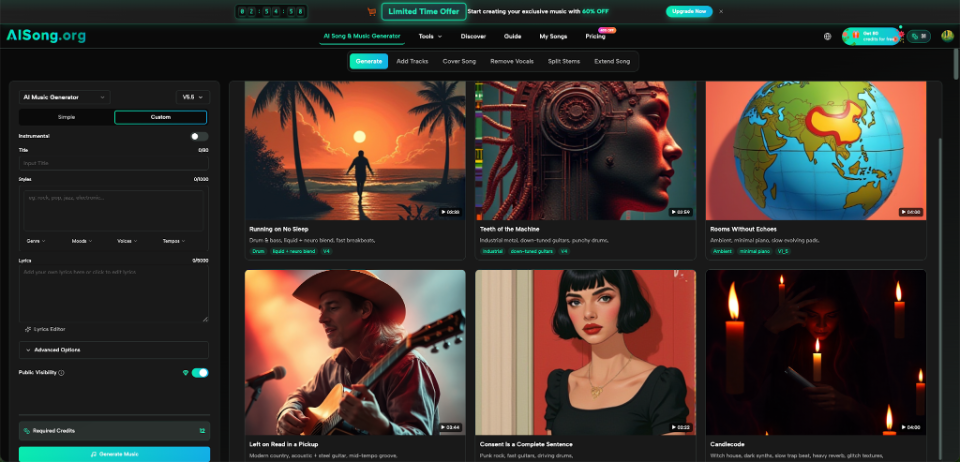
A creator opens a project folder and finds thirty audio files named “final,” “final2,” “new-final,” and “use-this-one.” Some are rough tests, some are promising versions, and nobody remembers which prompt produced them. AI music makes it easy to explore ideas, but that convenience can create a storage problem long before a drive is full. AI Song can generate music from descriptions or lyrics, yet the wider project still depends on how clearly you name, sort, compare, and preserve the resulting files.
Storage Speed Is Only One Part of the Problem
People often think about audio storage only in terms of capacity and transfer speed. Those matter when a project also includes video footage, image assets, and backups. However, poor organization can waste more time than a slow copy operation.
A fast SSD does not explain which file belongs in the current edit. A benchmark result does not tell you whether “version 7” changed the mood, lyrics, or tempo. Hardware can move files quickly, but a naming system helps people find the right one.
Each track should carry enough context to identify without replaying the entire folder.
Design the Folder Before You Generate
Create the project structure before the first test.
A basic structure can work for solo creators and small teams:
- 01_briefs
- 02_generated_tests
- 03_shortlist
- 04_edit_exports
- 05_final_delivery
- 06_archive
The numbers keep folders in a stable order. The names describe status rather than the software used, which helps when projects move between tools.
Place the original music brief in the first folder. Include the scene, intended mood, pacing, vocal or instrumental preference, and important exclusions. When the brief changes, save a dated revision instead of silently replacing it.
Use File Names That Explain the Difference
A useful file name answers three questions: what is it for, which version is it, and what changed?
- Start with the project or scene
Use a short identifier such as launch_teaser, podcast_intro, game_menu, or photo_slideshow. This groups related tracks even when files are viewed outside their original folder.
- Add the main musical direction
Include the trait that distinguishes the version: warm_acoustic, dark_synth, steady_instrumental, or slow_piano. Avoid labels such as good, better, or cool. Those judgments become unclear after a few days.
- Finish with a version number
Use a consistent pattern such as v01, v02, and v03. Leading zeroes keep the order correct when a folder grows beyond nine files.
A complete name might be photo_slideshow_warm_acoustic_v02.mp3. It is longer than song2.mp3, but it remains understandable when attached to an email, imported into an editor, or copied to another drive.
- Mark status without renaming the history
Instead of changing the filename to “final,” move the selected version into the shortlist folder or add a documented status tag. A file can be final for one edit and rejected for another. Preserving the original version name keeps the history intact.
Save the Prompt Beside the Output
The prompt is part of the project record. Without it, a successful result becomes difficult to reproduce or refine.
This AI Music Generator such as AISong accepts music descriptions and lyrics, with controls for style, genre, mood, voice, tempo, and instrumental output. Save the exact instructions used for each shortlisted track. A plain text file is enough.
Use matching names:
- launch_teaser_clean_electronic_v03.mp3
- launch_teaser_clean_electronic_v03_prompt.txt
- launch_teaser_clean_electronic_v03_notes.txt
The notes file should explain what worked and what did not. For example: “Opening fits the product reveal; percussion becomes too busy under narration after 18 seconds.”
This small habit prevents repeated listening and makes later revisions more deliberate.
Separate Generation Files From Editing Exports
Do not place every audio file in one folder. Generated source tracks and edited exports serve different purposes.
The generation folder should preserve the original downloaded result. The editing folder can contain trimmed versions, fades, volume adjustments, or combinations with voice-over. The delivery folder should contain only files approved for use.
This separation matters when an edit goes wrong. If the original remains untouched, you can rebuild the export without generating the music again.
It also reduces accidental replacement. Many editing programs suggest familiar names such as audio_export.mp3. Saving those exports in a dedicated folder makes collisions easier to notice.
Create a Shortlist Before the Folder Gets Large
Do not wait until twenty versions exist. After each generation session, choose the strongest two or three tracks and move copies or references into the shortlist folder. When the AI Song Maker gives you several possible directions, shortlist them by purpose rather than simply keeping the newest result.
Use a simple comparison table:
| Track | Best quality | Main issue | Next action |
| v01 warm acoustic | Natural opening | Too slow for final scene | Keep as reference |
| v02 light electronic | Fits visual cuts | Melody competes with speech | Test instrumental variation |
| v03 minimal piano | Leaves room for narration | Ending feels abrupt | Try a longer structure |
The table turns a pile of files into a decision record. It also helps a collaborator understand why a track was selected without listening to every rejected version.
Delete obvious failures only after confirming they contain no useful prompt or arrangement idea. Storage may be inexpensive, but clutter still has a cost.
Match Backup Effort to Project Value
Not every experiment needs the same protection. A casual test can remain in the working folder. A paid client project, released video, or important songwriting session deserves a backup plan.
A practical approach follows the familiar idea of keeping more than one copy, preferably in different storage locations. The working drive should not be the only place holding the approved track, prompt, and edit.
Back up the information needed to recreate the decision, not only the final audio. Include the brief, prompt, notes, original generation, and approved export.
Check the backup by opening a few files. A backup that has never been tested is only an assumption.
Know When Drive Performance Actually Matters
Music files alone are usually easier to handle than large video projects, but performance still matters in mixed-media work. A slow external drive may delay preview generation, file copying, or editing when audio sits beside high-resolution footage.
Benchmark tools can help compare drive behavior, but the result should answer a practical question. Are project files loading slowly? Is an external drive the bottleneck? Is the editor using the intended disk for cache and media?
Do not confuse benchmark speed with data safety. A fast result does not prove a drive is healthy, properly backed up, or suitable as the only project location. Performance testing and file protection solve different problems.
For audio experiments, organization should come first. Once the folders and files are clear, hardware testing can address real slowdowns rather than becoming a substitute for project management.
A Ten-Minute Cleanup Routine
At the end of each session:
- Rename new files using the agreed pattern.
- Save prompts for the strongest versions.
- Add one-sentence notes.
- Move selected tracks into the shortlist.
- Separate edited exports from original generations.
- Back up valuable project material.
- Remove duplicate downloads after checking them.
This routine is short enough to repeat and specific enough to prevent a large cleanup later. It also makes the next session easier because you can see where the project stopped.
Conclusion
AI music exploration becomes harder when every result is stored without context. Build the folder structure first, use descriptive version names, save prompts beside shortlisted tracks, and separate originals from edited exports. Back up the decisions that matter, then investigate drive performance only when a real bottleneck appears. Apply the ten-minute cleanup routine after your next generation session and make every track easier to find, compare, and reuse.