
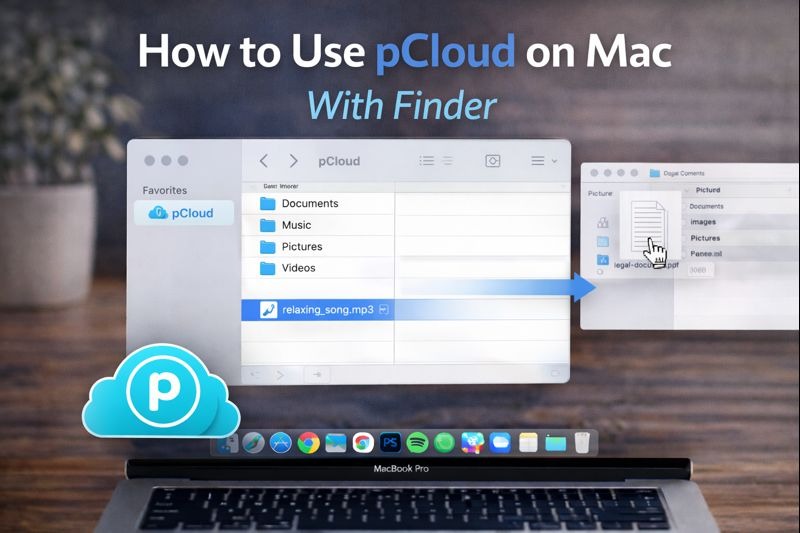
Using pCloud on a Mac becomes much easier when it is connected directly to Finder. Instead of opening cloud storage in a browser every time, Finder integration lets you work with your files in a more natural way, just like local folders on your computer.
Many users prefer this setup because it improves speed, makes organization simpler, and avoids the hassle of constantly downloading and re-uploading files.
How pCloud Works on macOS
pCloud offers more than one way to access your storage on a Mac, and choosing the right method depends on how you work with files.
pCloud Web vs Finder Access
The web version of pCloud is useful for quick file access, sharing links, or uploading something occasionally. However, it can feel slow when you need to manage folders or open files frequently.
Finder access is different because it allows you to browse cloud storage the same way you browse documents on your Mac. This is why many people look for the best pcloud mac workflow that feels seamless for daily use.
Sync Folder vs Mounted Drive
A sync folder downloads selected files to your Mac and keeps them updated automatically. This is helpful if you need offline access.
A mounted drive shows your entire cloud storage in Finder without downloading everything. Files stay online until you open them, which is ideal for saving disk space.
Why Add pCloud to Finder
Adding pCloud to Finder is mainly about convenience and efficiency.
Faster File Access
When pCloud appears in Finder, you can reach your files instantly without opening extra apps or logging in through the browser. This saves time, especially if you work with cloud files every day.
Work With Files Like Local Storage
Finder integration makes cloud storage feel like part of your computer. You can rename files, organize folders, and manage content in the same way you do with local documents.
This is one of the biggest reasons people prefer using pCloud through Finder rather than through the web interface.
Avoid Downloading Everything
With mounted access, you can browse your cloud storage without filling up your Mac’s hard drive. This is especially useful if you have a large library stored in pCloud but only need certain files occasionally.
Mount pCloud as a Drive on Mac
Mounting pCloud is one of the most convenient ways to access cloud storage through Finder.
What “Mounting” Means on macOS
Mounting means your cloud storage appears as a drive inside Finder, similar to an external hard drive. You can open it from the sidebar and manage files directly without downloading everything first.
Connect pCloud Using CloudMounter
Some users choose tools like CloudMounter because they allow pCloud to be connected as a Finder drive alongside other storage accounts.
This approach is helpful when you want direct access without relying only on sync folders.
Open and Manage pCloud Files in Finder
Once mounted, your pCloud storage behaves like a normal drive. You can browse folders, open files, and move content around easily, all inside Finder.
Working With Files After Mounting
After mounting pCloud, everyday file management becomes simpler.
Upload and Download Files
Instead of thinking in terms of uploading and downloading manually, you can drag files into the mounted drive to upload, or drag files out to download them locally.
This feels much more natural than using browser-based cloud storage.
Move Files Between Cloud Services
Mounted storage can also make it easier to transfer files between different cloud services. You can copy or move files directly between drives without multiple download steps.
Use Multiple pCloud Accounts
If you manage separate accounts for work and personal use, mounting tools can make it easier to access both accounts within the same Finder environment.
Finder Integration and macOS Features
A good Finder setup should feel stable, secure, and consistent.
Sidebar and Drive Visibility
The best experience is when pCloud stays visible in Finder’s sidebar, allowing one-click access anytime. Mounted drives make this much easier than constantly searching for folders.
macOS Keychain for Login Security
On macOS, Keychain provides secure storage for login credentials. Tools that integrate with Keychain reduce the risk of insecure password saving and make sign-ins smoother.
Compatibility With Recent macOS Versions
Modern macOS updates can affect cloud drive integration, so it is important that the app or mounting tool you use stays updated for the latest system versions.
pCloud Security Basics
Security is an important part of using cloud storage responsibly.
How pCloud Protects Your Data
pCloud provides encrypted connections for file transfers and also offers additional security features for protecting stored data.
This makes it suitable for everyday personal and business use.
When to Use Client-Side Encryption
Client-side encryption is best when you store highly sensitive files, such as financial documents or private business data.
With client-side encryption, data is encrypted before it leaves your device, adding an extra layer of protection.
Frequently Asked Questions
Is pCloud safe to use on Mac?
Yes, pCloud is generally considered safe, especially when using strong passwords and encryption features for sensitive storage.
Can I access pCloud offline?
Offline access depends on your setup. Sync folders allow offline use because files are stored locally, while mounted drives usually require internet access unless files are made available offline.
Is mounting better than syncing?
Mounting is better when you want access to everything without using up storage space.
Syncing is better when you need specific folders available offline all the time.
Many users combine both approaches for the best balance.
Final Thoughts
Using pCloud through Finder is one of the easiest ways to make cloud storage feel like part of macOS. Whether you choose syncing for offline access or mounting for space-saving convenience, Finder integration improves speed and workflow.
Once set up properly, working with pcloud mac storage becomes far more natural, letting you manage cloud files the same way you manage files on your computer.