
Have you ever wondered how to change your location on PC without physically traveling to another place? Depending on what you want to change, you can modify your IP-based location with a VPN, adjust browser location settings, or use a dedicated tool to simulate the GPS location of a connected mobile device.
For users who want to change the GPS location of an iPhone or Android phone from a Windows computer, a GPS location changer can be a convenient solution. This guide explains how GPS location changing works, how to change GPS location from Windows, and how tools such as MagFone Location Changer can make the process easier.
What Is a GPS Location Changer?
A GPS location changer is software that allows a mobile device to report a simulated geographical location instead of its actual GPS coordinates. For example, you can select a location on a map and make your supported phone appear to be there. This process is often called GPS spoofing or using a fake GPS location.
GPS location changers can be useful for legitimate purposes such as testing location-based applications, checking regional features, developing mobile software, and exploring how applications respond to different geographical locations.
It is important to understand that a GPS location changer is different from a VPN. A VPN primarily changes your IP address, while a GPS location changer changes the location information provided by the mobile device.
How to Change Your Location on PC
If you’re searching for how to change your location on PC, the first thing to determine is which type of location you want to change.
- Change Your IP Location: A VPN can route your internet connection through a server in another region, making websites see the VPN server’s IP address instead of your actual IP address. This can be useful for changing your apparent online region, but it does not normally change the GPS coordinates reported by your smartphone.
- Change Your Browser Location: Some websites request location information from your browser. Depending on your browser and operating system settings, you may be able to control whether websites can access your location. However, browser-based location settings don’t necessarily change the GPS location reported by a mobile application.
- Change Your Phone’s GPS Location from PC: If your goal is specifically to change GPS location on an iPhone or Android phone while using a Windows computer, a dedicated GPS location changer is a better fit. A desktop tool like MagFone Location Changer can provide a map-based interface where you select a destination and then apply the simulated location to your connected mobile device.
How to Change GPS Location on iPhone & Android from PC
One option is MagFone Location Changer, a Windows-based location-changing tool designed to work with supported iPhone and Android devices. Instead of manually configuring complicated settings, users can select a destination through a visual map and control different types of simulated movement.
Step 1: Download and install MagFone Location Changer on your Windows computer. Launch the program and select the appropriate location-changing function. Then connect your iPhone or Android phone to the computer using a USB cable. Unlock your device and follow the on-screen instructions to establish the connection.

Step 2: Once your phone is connected, open the map interface and search for the location you want to simulate. You can enter a city, address, or specific destination. The map allows you to check the selected point before applying the location change. This provides a simple way to change GPS location without manually entering geographical coordinates.
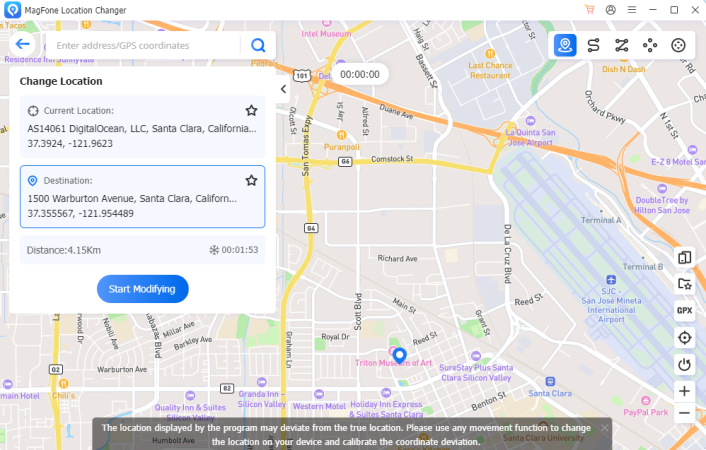
Step 3: After selecting your destination, click Start Modifying process. MagFone Location Changer will simulate the selected GPS position on the connected device. Compatible applications may then detect the simulated location rather than the device’s actual geographical position.

For users searching for a GPS location changer for iPhone, this can be particularly useful because the location can be managed from a Windows computer without requiring a jailbreak for supported configurations. Android users can also use it as a GPS location changer for Android, with available functions depending on the device and operating system.
Changing your location doesn’t necessarily mean jumping instantly from one place to another. MagFone Location Changer provides several movement options for users who want to simulate a route:
- Two-Spot Movement Mode – Simulate movement between two selected locations.
- Multi-Spot Movement Mode – Create a route involving multiple destinations.
- Jump Teleport Mode – Move between selected locations at intervals.
- Joystick Movement – Control simulated movement manually.
These modes can be useful when testing applications that respond differently depending on whether a device is stationary or moving.
What Can You Do With a Fake GPS Location?
There are several legitimate situations where a fake GPS location can be useful.
- App Testing: Developers can simulate different locations without physically traveling to each location. This can make it easier to test location-based features during development.
- Location-Based Features: Some applications provide different content or functions depending on geographical location. Simulating another location can help users test how these features respond to different coordinates.
- Privacy Research: Simulated locations can also be useful when learning how applications use location information and testing different privacy configurations.
- Route Testing: Movement simulation can help developers test how an application responds when a device moves between different locations.
However, users should always check the rules of individual apps and services before using GPS spoofing. Some platforms may prohibit simulated locations or take action when unusual GPS activity is detected.
GPS Location Changer vs. VPN
A common question is whether you need a VPN to change your location. The answer depends on what type of location you want to change.
A VPN changes your IP-based location, while a GPS location changer changes the geographical coordinates reported by a supported mobile device. For example, connecting to a VPN server in another country may cause a website to identify your internet connection as coming from that country. However, an app that reads your phone’s GPS data may still see your actual physical location. Therefore, if you specifically want to change GPS location, a dedicated GPS location changer is more appropriate than relying on a VPN alone.
Final Thoughts
If you’re wondering how to change your location on PC, there are several approaches depending on what you want to accomplish. A VPN can change your IP-based location, browser settings can affect the location shared with websites, while a dedicated GPS location changer can simulate the GPS position of a connected mobile device.
For users who want to change GPS location on an iPhone or Android phone from Windows, MagFone Location Changer provides a convenient map-based solution with multiple location and movement modes. Whether you need a GPS location changer for iPhone or a GPS location changer for Android, check compatibility before getting started. And if you plan to use a fake GPS location, make sure your use complies with the policies of the applications and services involved.